 BrightenBooks
How to download
Download BrightenBooks on any device.
Pick your device for step-by-step instructions with pictures. The same app and the same books everywhere.
Tap your device above and the steps appear below.
Questions? Email our support and we will help you set it up.
iPhone
How to download BrightenBooks on your iPhone.
It takes about a minute. The app is free to download, and every plan starts with a 7-day free trial.
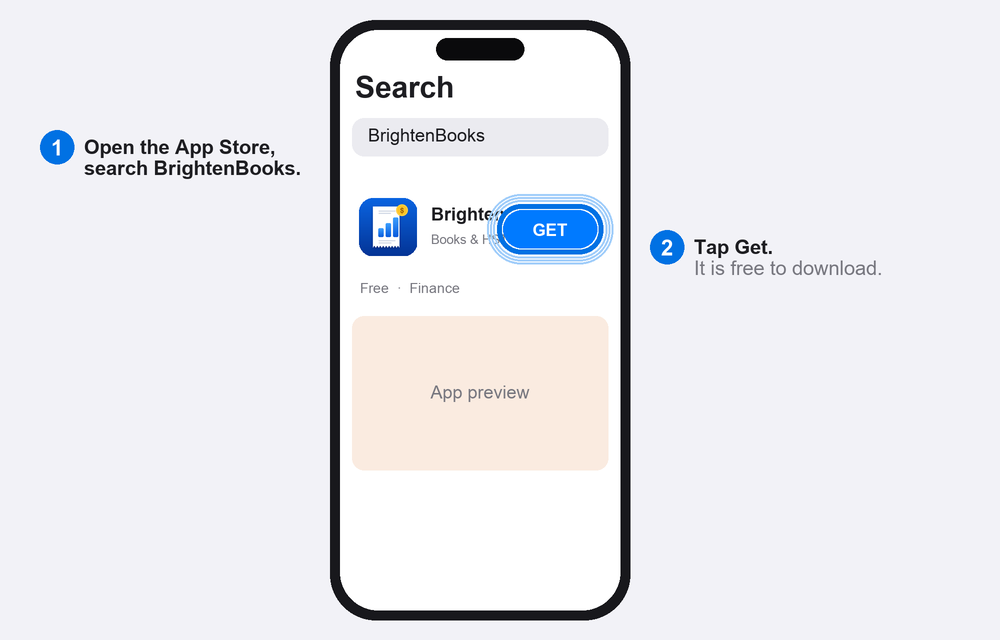
Find it in the App Store
Open the App Store, tap Search, and type BrightenBooks. Tap Get. (On your phone you can also tap Download on the App Store on this website.)
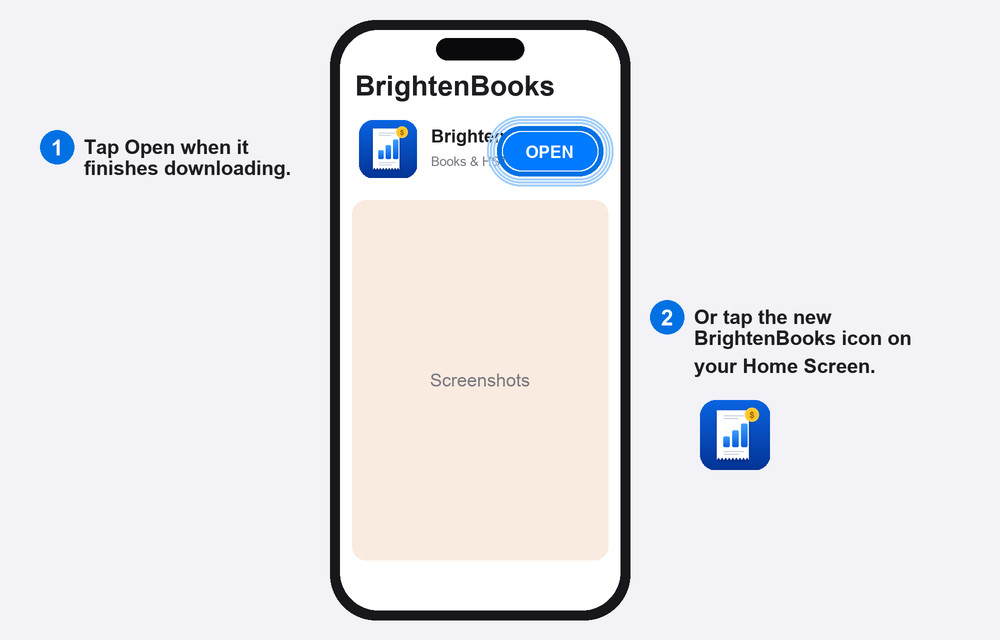
Open it
When the download finishes, the button changes to Open. Tap it, or tap the new BrightenBooks icon, which appears on your Home Screen automatically.
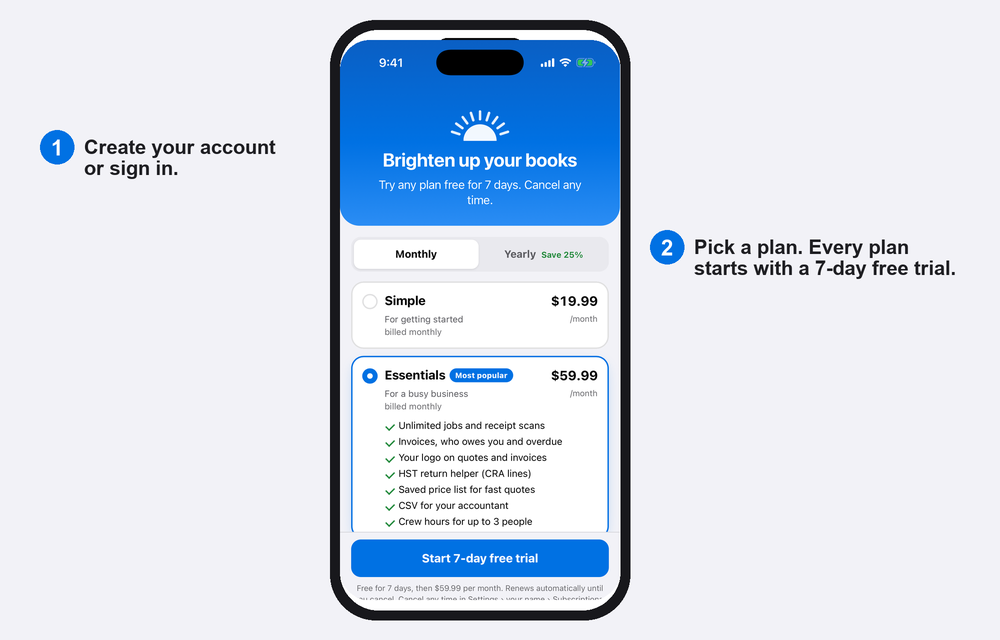
Start your free trial
Create your account or sign in, then pick a plan. Every plan starts with a 7-day free trial.
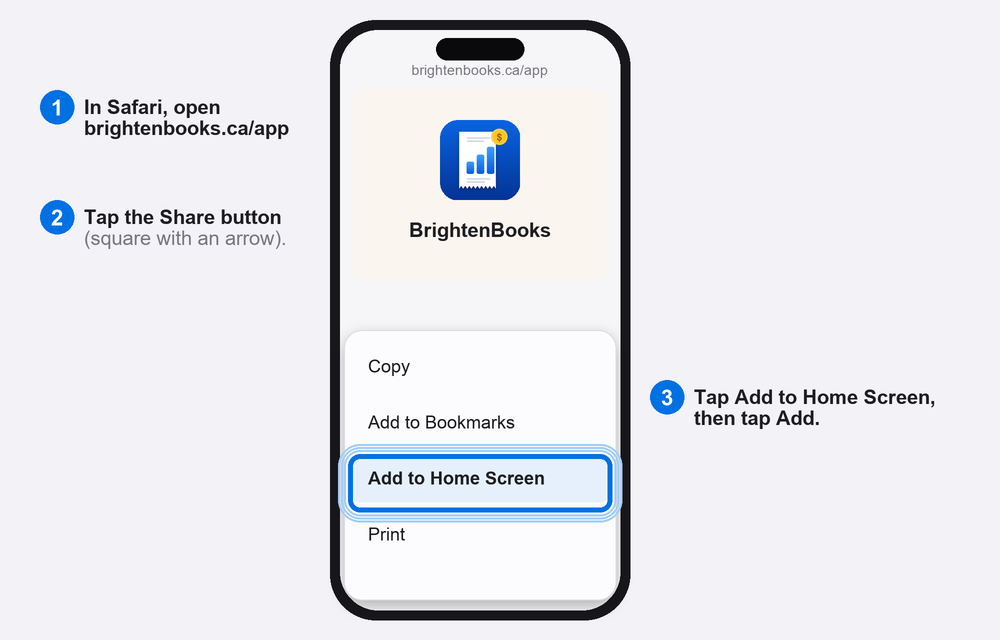
No App Store? Add it to your Home Screen
You can also use BrightenBooks from Safari. Open brightenbooks.ca/app, tap the Share button, choose Add to Home Screen, and tap Add. The BrightenBooks icon appears on your Home Screen.
iPad
How to download BrightenBooks on your iPad.
The same app works on iPad, with the same books as your iPhone when you sign in.
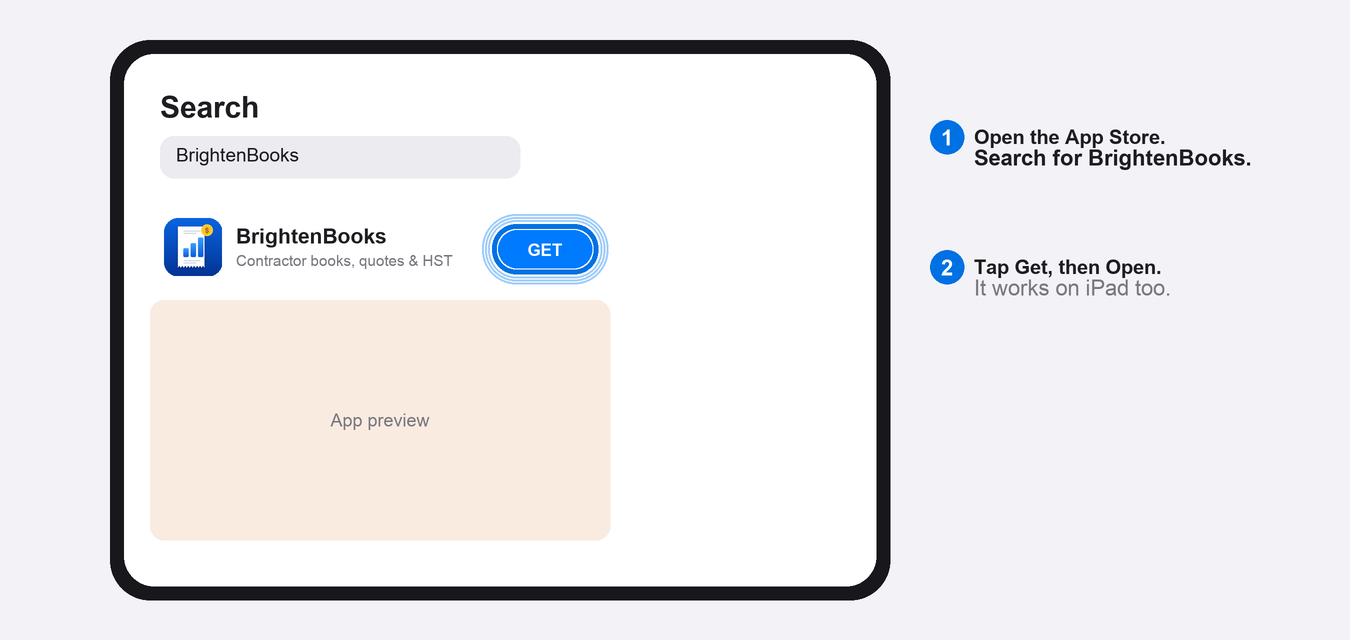
Find it in the App Store
Open the App Store on your iPad and search for BrightenBooks. Tap Get, then Open.
Sign in and start
Sign in with the same email as on your iPhone and your books come down. New here? Create an account and start your 7-day free trial.
Put it on your Home Screen
The icon is added to your Home Screen automatically. Or use Safari: open brightenbooks.ca/app, tap Share, then Add to Home Screen.
Mac and MacBook
How to download BrightenBooks on your Mac or MacBook.
There are two ways. Pick the one that matches your Mac.
Way 1: Mac with an Apple chip. A real app from the App Store.
- Open the App Store on your Mac (the blue icon with an A, in your Dock or Launchpad).
- Click the search box at the top left, type BrightenBooks and press Return. If you only see other apps, click iPhone & iPad Apps under the search results.
- Click Get, then Install. If it asks, enter your Apple ID password. The app downloads by itself.
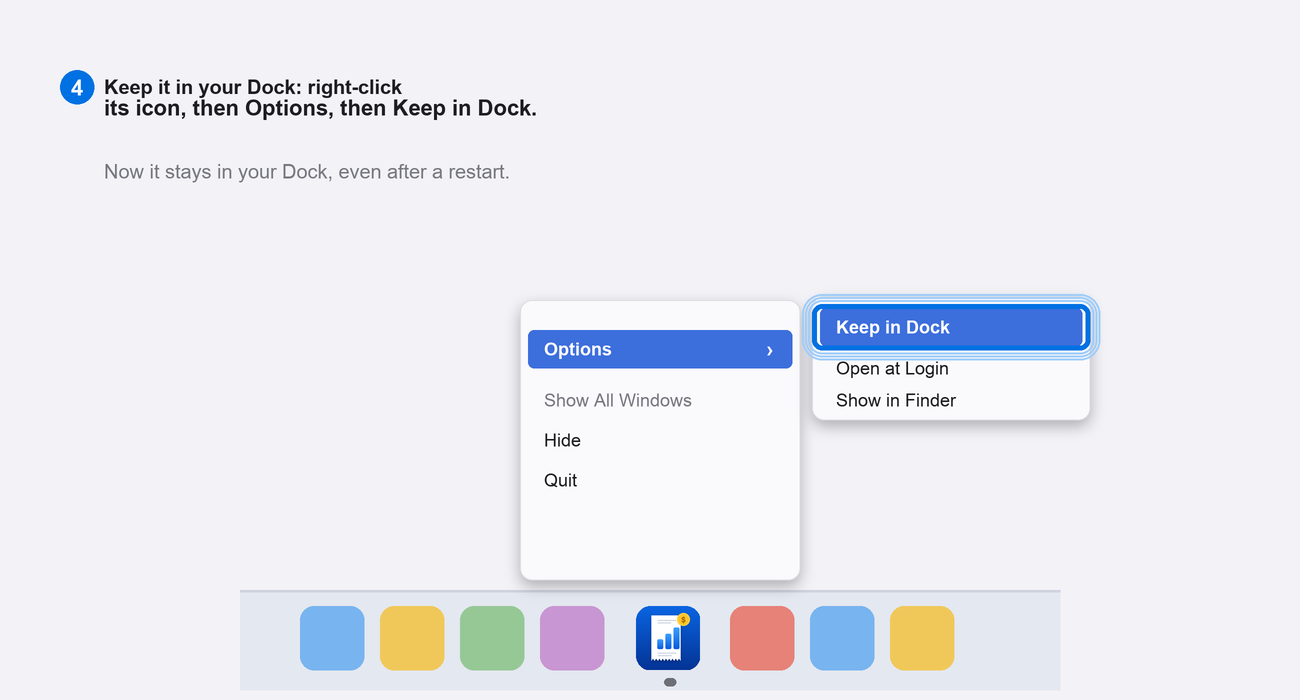
- Click Open. To keep it in your Dock, right-click (or two-finger click) its Dock icon, choose Options, then Keep in Dock. Next time, find it in Launchpad or your Applications folder.
Way 2: Any Mac (including Intel). Install it from your browser.
Four clicks, about 30 seconds. There is no file to download.
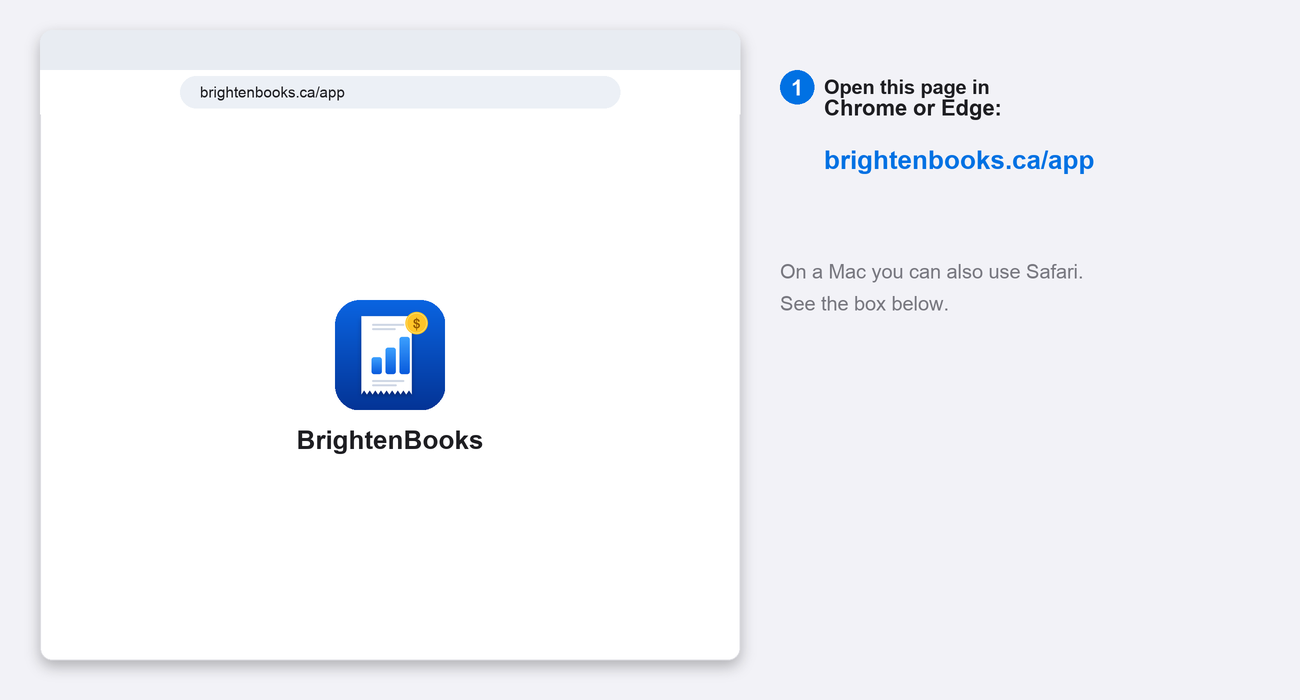
Open the page
Open brightenbooks.ca/app in Google Chrome or Microsoft Edge.
Click the install icon
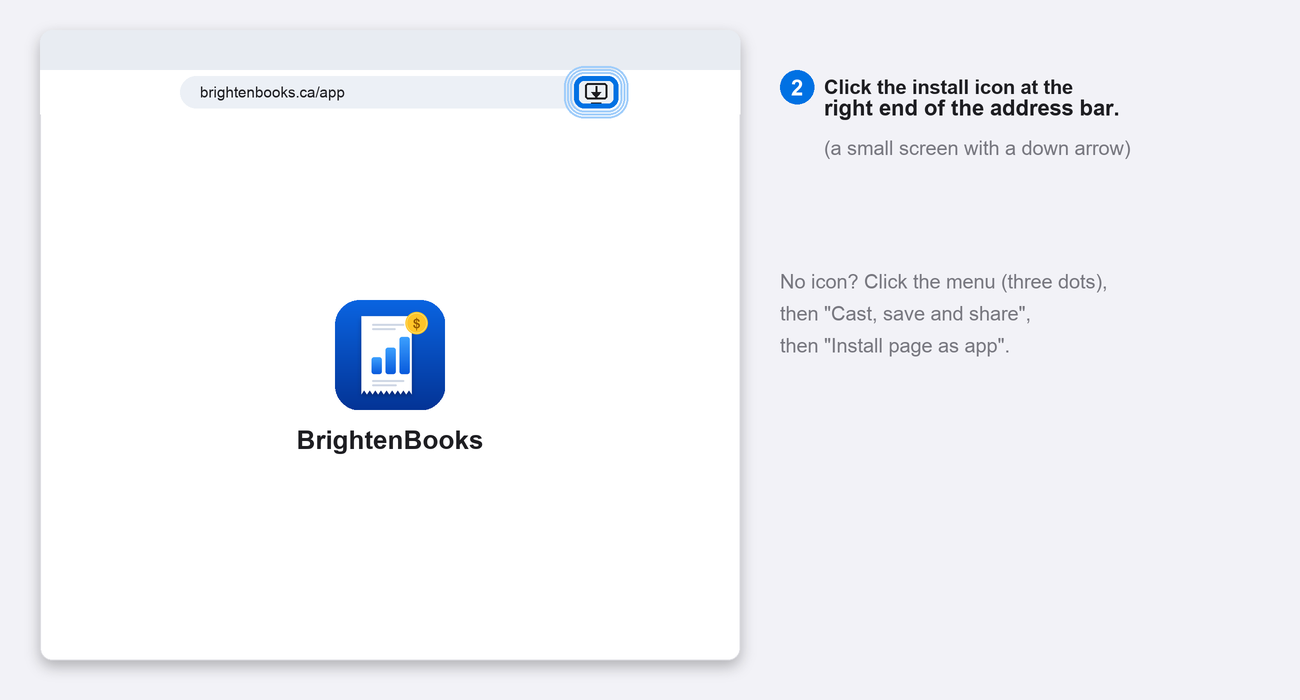
Click the small install icon at the right end of the address bar (a little screen with a down arrow). Don't see it? Click the menu (three dots), then Cast, save and share, then Install page as app. In Edge: menu, Apps, then Install this site as an app.
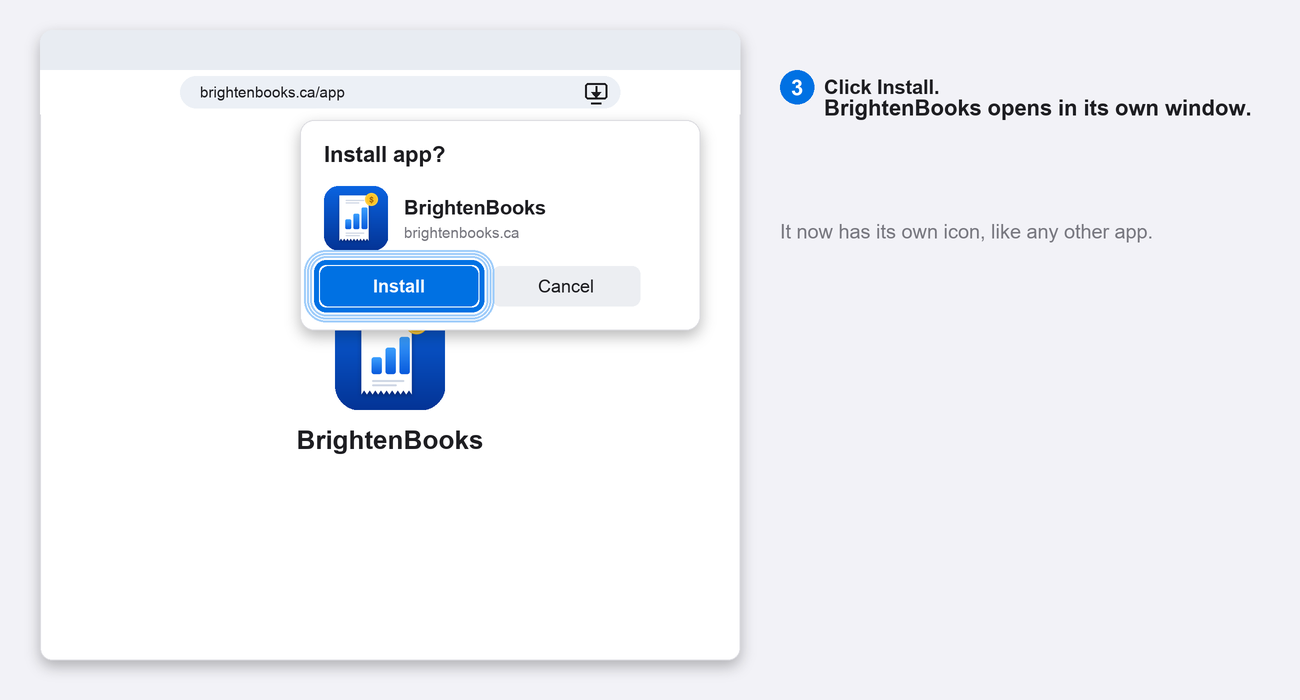
Click Install
Click Install in the box that appears. BrightenBooks opens in its own window, with its own icon, like any other app.
Keep it in your Dock
Right-click (or two-finger click) the BrightenBooks icon in your Dock, choose Options, then Keep in Dock. Now it stays there, one click away. Sign in with the same email as your phone and your books are there.
Windows
How to download BrightenBooks on Windows.
Four clicks, about 30 seconds. You install it from your browser, so there is no file to download or run.
Open the page
Open brightenbooks.ca/app in Google Chrome or Microsoft Edge.
Click the install icon
Click the small install icon at the right end of the address bar (a little screen with a down arrow). Don't see it? Click the menu (three dots), then Cast, save and share, then Install page as app. In Edge: menu, Apps, then Install this site as an app.
Click Install
Click Install in the box that appears. BrightenBooks opens in its own window, with its own icon, like any other app.
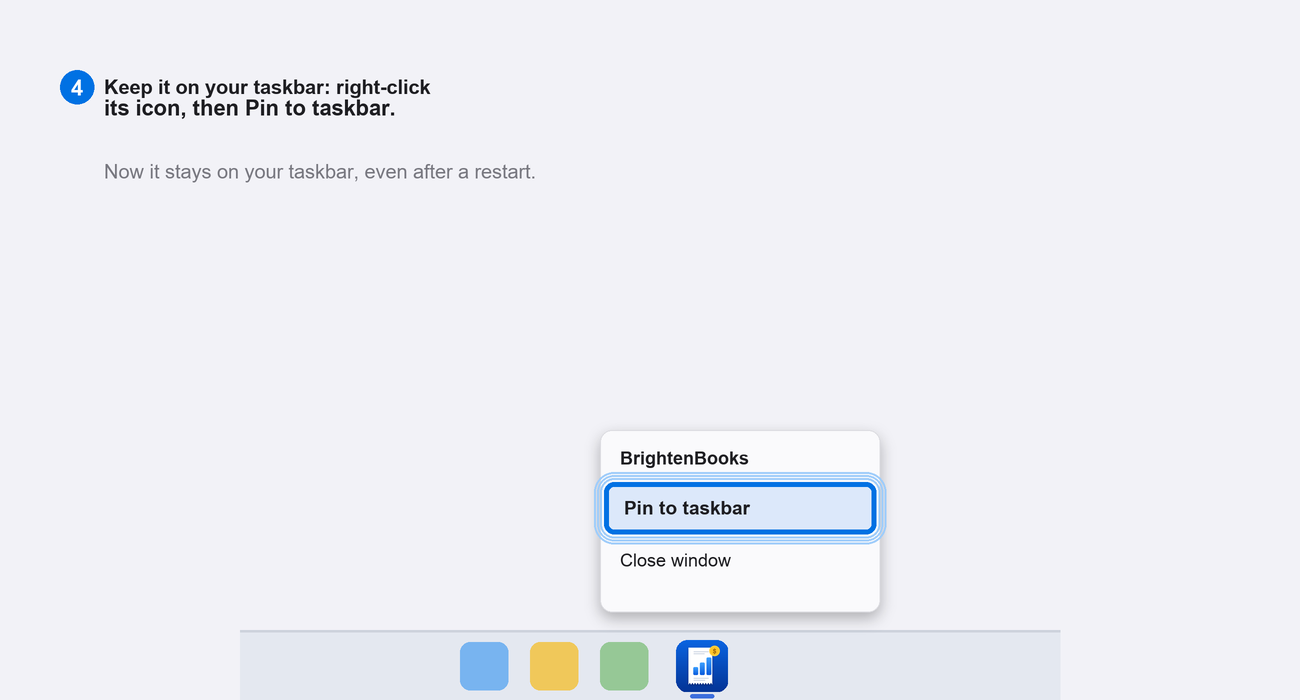
Pin it to your taskbar
Right-click the BrightenBooks icon in your taskbar and choose Pin to taskbar. Now it stays there, one click away. Sign in with the same email as your phone and your books are there.